I sat down to help my sister to begin working on genealogy this past week. We first went to FamilySearch and opened her account. By doing so, her Family Tree was automatically formed. 'Where is everyone?', she said.
I wish it were that easy. Even if you have a family member who has already created a tree on FamilySearch, it doesn't automatically generate it for you. Unfortunately at this time, I am unaware of any way in which you can upload an already existing GEDCOM file to the system, so when you begin using FamilySearch's tree application, you need to create it from scratch and you need to know some very important things. (Note: You can upload a GEDCOM to the Genealogies section to share with others, however that will have to be another blog!)
Here is the background information. Many years ago, members of The Church of Jesus Christ of Latter-day Saints filled out 4 generation pedigree charts and sent them into Salt Lake. They did not have to prove their information. These were made into a "database", for lack of a better word. It is sometimes referred to as Ancestral File. Read more at
https://familysearch.org/learn/wiki/en/Ancestral_File. At another time, not too long ago, members were able to upload GEDCOM files to the very new new.familysearch.org site. These files were collected and are called Pedigree Resource File. Some had sources or notes, but it was not required. Read more about that at
https://familysearch.org/learn/wiki/en/Pedigree_Resource_File. Lastly, the church has been working with volunteers to index many public records that are then added to the system.
What all this means is that your ancestors are likely already in the system that Family Tree is using. Either their names were submitted by a descendant or their names were submitted when the information was extracted from indexing.
After you have created an account on FamilySearch.org, near the top left you will see the words Family Tree. That is where your family tree has been generated.
Then you see the following:
The "add husband" is actually adding a father for Jane. Similarly, the "add wife" is the mother of Jane. If Jane's parent is ALIVE, she will have to ADD them because the system will not let you find information on living individuals. However, if Jane's parent is DEAD she should first try to FIND them in the system before she ADDS them.
In the example below, we are going to assume that Jane's father is dead and she pushed "Add Husband". She is then taken to the following page. Note that there is an "Add Person" tab and a "Find Person" tab. The system will automatically take you to "Find Person" tab.
Jane will want to put in as much information about her father as she knows and then click "Find" at the bottom.
The system will then take you to a list of possible matches or it will respond that no matches are found. If you see the right person in the match list, you can click "Select" and the information is directly attached to your tree in the proper position. If you do not see a match, then you will be directed to ADD the individual.
But wait, there's more! Family Tree needs some cleaning up. It would be in your best interest to "clean up" your people and I hope that I can show you how to do that.
Let's assume that you have added or found your parents, grandparents, and great-grandparents. Now, let's go to your first DEAD ancestor. I say dead because you don't need to do any clean up for your live people. I will use one of my family as an example. Let's say my father is Milford Frazee. I find him on my chart and click his name and a Milford Frazee box pops up.
At this point, I click on the "Person" at the bottom of the box. That takes me to his "Details" page. This is going to be where you can edit or add information about birth, death, marriage, etc.
It looks like this:
You will notice that if you scroll down to the "Tools" section which is located to the right, it says "Possible Duplicates". Many times, our ancestors are in the system more than once and so we need to merge them. By merging, you are taking all the Milford Frazees, that are the same person, and putting them together so that only one now exists in the system. Sometimes you are lucky and there are no possible duplicates!
I have cleaned up nearly all my family tree, so I am going to use another family for this example. Thanks to friend Doug Carey for giving his permission to use his family names! This person is Thomas Martin Carey. I find him on the family tree and click his name.
Click the "Person" in Thomas Martin Carey's box and it will take you to his details page:
Scroll down to the bottom and over to the right you will click "Possible Duplicates". In this case, there was something to merge.
You need to click on "Review Merge". It takes you to a split screen with your information on one side and the information of the other person on the other side. This allows you to see if you would like to merge them AND you can use information from the other record to "add" to your own. Here is the picture of the 2 Thomas Careys for me to review. My original record is on the left and the one that is referred to as the "other" is on the right.
Everything looks good. I have added the marriage date and location for Thomas and Catherine to my record and now I will continue with the merge. Once you hit this, it will delete the one on the right and you are left with only one Thomas Martin Carey in the system. Before the final merge, the system will ask you to give a reason you think this is correct. I usually write something like "This person was in the system more than once" or "Thomas was recorded as Thomas M. Carey and his full name is actually Thomas Martin Carey".
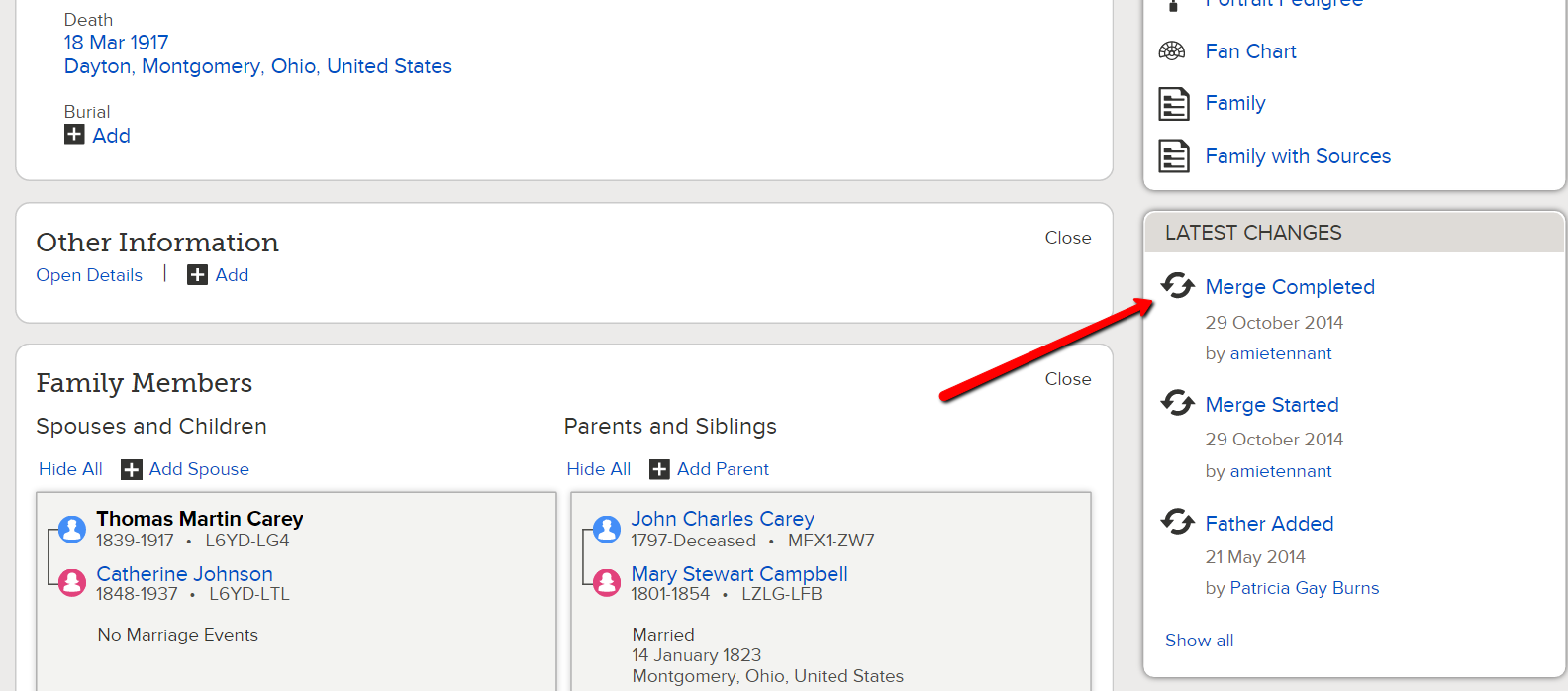
If there are more than one record that should be merged, you simply go through the process over and over until you have merged each one that is a duplicate. If you accidentally merge something that should not have been merged, that is okay...it can be fixed. On the details page, near the middle and over to the right, you will see a section called "Latest Changes". By clicking on the merge you just created, the system will ask you if you wish to "unmerge".
Continue on with each of your ancestors until you have "cleaned up" everyone. A long process, but worth it! Happy hunting!


.png)